How To Manage a Lead
Tip
Assinging a Lead to sales is generally safe. Just make sure you place all comments that you don't want sales to see in the "Internal Notes" field rather than in the comments area.
Assign a Lead to sales.
Assinging the Lead to a Territory grants any any user (Sales Person or Sales Partner) that has access to that Territory read/write access to the Lead. Access takes effect immediately.
- Assign the Lead to a Territory.
- Open the Lead Document you want to manage.
- Scroll down to the "More Information" section and expand it.
- Select the Territory assigned to sales in the User Permissions DocType.
- Click the blue "Save" button in the upper-right corner above the form.
Assigning the Lead to a Sales Partner or Sales Person creates a ToDo for the related user
- Assign the Lead to a Sales Partner or Sales Person

Scheduling Follow Up
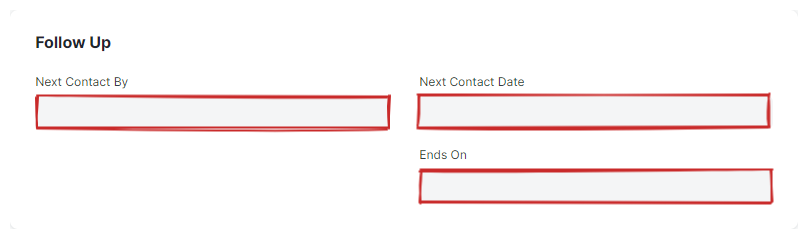
Scheduling follow up on a lead creates an Event Document and shares it read-only with the assignee, provided the user has permission to do so. The event contains a link back to the Lead Document, and can be viewed on both the Calendar, as well as the "Today's Events" section of the notification area.
-
Fill out the Follow Up section.
- Next Contact By
- Select the user who will perform the follow up.
- Next Contact Date
- Select the date and time of the follow up appointment.
- Ends On
- Select the date and time of end of the appointment.
-
Click the blue "Save" button in the upper-right corner above the form.
Tracking Lead Status
As Leads travel throught the Lead funnel and are converted or lost, the state of the lead can be tracked by keeping the "Status" field up-to-date. This can be done through the standard form, or managed visually using the Kanban View option with a drag-and-drop interface, accessible from the List View.
- Lead
- This is the default status assigned when a Lead is created and it indicates an action is needed against this Lead.
- Open
- Sales executive needs to contact the Lead.
- Replied
- A sales executive has provided the information needed and response from Lead is awaited.
- Opportunity
- If an Opportunity is created against the Lead, the status is set to Opportunity. It indicates that the Lead is qualified and may lead to sales.
- Quotation
- If a quotation is created against a Lead, then the status is set to Quotation.
- Lost Quotation
- If the quotation given to the lead has been marked as lost, then the status is set to 'Lost Quotation'.
- Interested
- The lead is interested in the products or services.
- Converted
- If the quotation given to the Lead has resulted in confirmation of an order and if the Sales Order has been created against the quotation, then the status is set to Converted.
- Do Not Contact
- Lead is not interested and no further communication is needed.