How To Enter a New Address
Abstract
Address are typically linked to another DocType - e.g. a Customer, Contact, or Dividers Store.
Warning
Changes to this Document will not automatically update other Documents. For example, if this is a Customer's Primary Address, the pre-updated address will continue to be displayed after saving changes. To address this shortcoming, open the relevant Document and re-select the Address Document
Tip
A new Address should be created from the relevant DocType by clicking on the "New Address" button that appears on the DocType form. Doing so allows the system to name the Address Document instead of requiring the user to do so.
- Start a new Customer Document.
- Fill out the form as described below, ignoring any sections or fields that are not listed.
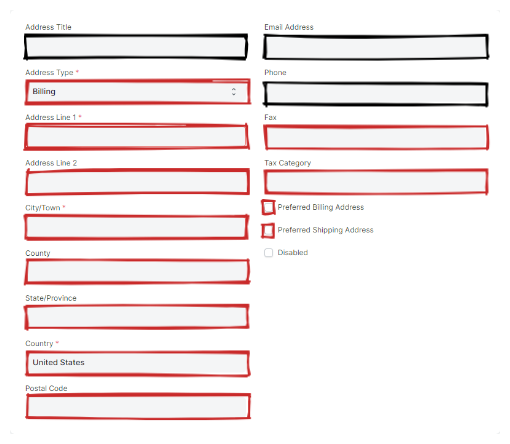
Address Form
Top Section
- Address Title
- This is the document name. You should ignore this field if you started the new Address from a Link Field. If instead you are creating the Address from scratch, you will need to give the Address a descriptive name.
Info
When the address is created from a Link Field, this field will be used to name the Document.
- Address Type
- Select the appropriate address type from the list. In the case of a Dividers Store, select "Permenent".
- Address Line 1
- Fill out the first address line.
- Address Line 2
- Fill out the second address line.
- City/Town
- Fill out with the City name.
- County
- Fill out with the county if available.
- State
- Fill out with the State.
- Country
- Fill out the Country.
- Postal Code
- Fill out with the Postal/Zip Code
- Email Address
- Only fill this field out if you have an email address that belongs to the location rather than a Contact.
- Phone
- Only fill this field out if you have an phone number that belongs to the location rather than a Contact.
- Fax
- Fill out with location's the Fax Number
- Tax Category
- There are no instructions for this field at this time.
- Preferred Billing Address
- Check this field to indicate that this Address should be used as the billing address in Sales Order, Sales Invoice, and Delivery Note transactions.
- Preferred Shipping Address
- Check this field to indicate that this Address should be used as the shipping address in Sales Order, Sales Invoice, and Delivery Note transactions.
REFERENCE Section
- Links
-
Typically this field is managed by ERPNext. If you want to explicitly associate this Document with another Document, you can select the DocType and Document here.
- Link Document Type
- Select the DocType of the Document you want to associate this Document with.
- Link Name
- Select the Document you want to associate the Document with.
This section is only necessary if you explicitly associate this Address with another Document, as this field is normally filled out automatically by ERPNext.
