How To Enter a New Contact
Abstract
A Contact may be linked to various DocTypes, including the Lead, Customer, User, and Dividers Store DocTypes. It may also be created as a standalone record without links to any other Documents.
Warning
Changes to this Document will not automatically update other Documents. For example, if this is a Customer's Primary Contact, the pre-updated contact information will continue to be displayed after saving changes. To address this shortcoming, open the relevant Document and re-select the Contact Document
Danger
There is a button called "Invite as User". Do not click this button without specific instrucitons to do so, since the website is not currently set up properly for external access.
Tip
New Contacts should be created from the relevant Document whenever possible by clicking on the "New Contact" button that appears on the DocType form. Doing so allows the system to automatically associate the Contact with the appropriate Document.
- Start a new Contact Document.
- Fill out the form as described below, ignoring any sections or fields that are not listed.
Contact Form
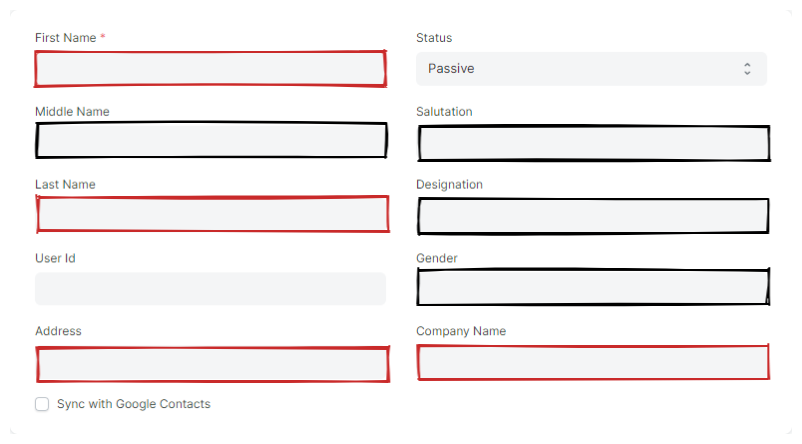
Top Section
- First Name
- Fill out the Contact's first name.
- Middle Name
- Fill out the Contact's middle name (if any).
- Last Name
- Fill out the Contact's last name.
- User ID
- Use to associate the Contact with a specific user. This field should be ignored unless instructed otherwise.
Tip
To add new Contact Address, do so through by adding it to the Customer first, then selecting it here.
- Address
- Choose/create an address from among Address Documents associate with the Customer.
- Salutation
- Select an appropriate salutation from the list if known.
- Designation
- Indicate the Contact's role or designation here. E.g. "Owner", "Staff", etc.
- Gender
- Select the Contact's gender if known.
- Company Name
- Indicate the Contact's company here.
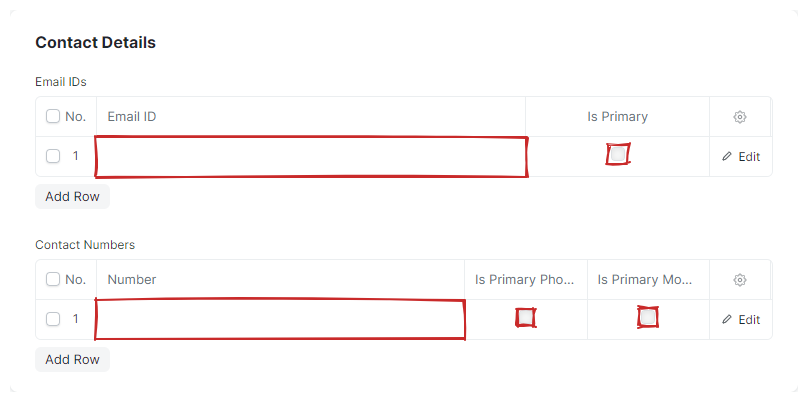
CONTACT DETAILS Section
- Email IDs
-
Fill this Table Field out with any known email address belonging to the Contact.
- Email ID
- An email address.
- Is Primary
- Select this checkbox if the email address is the Contact's primary address. This will cause the field to populate a read-only field in the top section of the Contact Document, as well as other places in ERPNext.
- Contact Numbers
-
Fill this Table Field out with any known phone numbers belonging to the Contact.
- Phone
- A phone number.
- Is Primary Phone
- Select if this number is the Contact's primary phone number. This will cause the field to populate a read-only field in the top section of the Contact Document, as well as other places in ERPNext.
- Is Primary Mobile
- Select if this number is the Contact's primary mobile number. This will cause the field to populate a read-only field in the top section of the Contact Document, as well as other places in ERPNext.
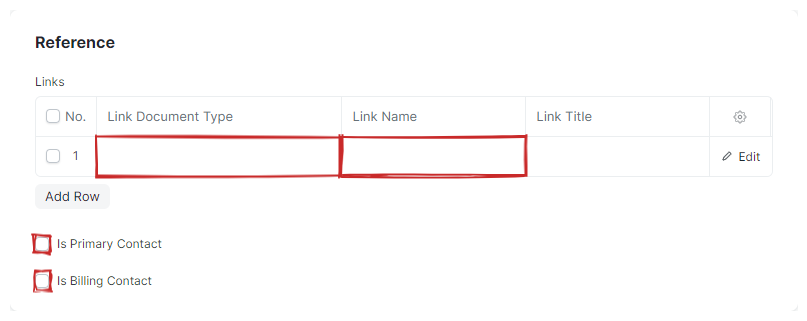
REFERENCE Section
- Links
-
Typically this field is managed by ERPNext. If you want to explicitly associate this Document with another Document, you can select the DocType and Document here.
- Link Document Type
- Select the DocType of the Document you want to associate this Document with.
- Link Name
- Select the Document you want to associate the Document with.
- Is Primary Contact
- Select if this is the primary Contact for the Customer.
- Is Billing Contact
- Select if this is the billing Contact for the Customer.