How To Gang and Print Dividers
Info
The resources used during the Dividers production cycle are listed here for reference.
| Informational Resources | Purpose |
|---|---|
| Customer DocType | Provides Customer-related information. |
| Dividers Store DocType | Represents stores that can be reserved and and ads intalled in. |
| Item DocType (Reservation) | Provides reservation information for the gang. |
| Sales Order DocType | Used to determine if a reservation is active (reservations that do not appear on a Sales Order are not produced. |
| Subscription Plan | Tracks reservations on subscriptions. |
| Subscription | Tracks subscription information, including start and end dates. |
| Component Resources | Purpose |
|---|---|
| Dividers Final DocType | Provides the Final for ganging. |
| Item DocType (Stick) | Tracks the stick that is produced. The gang PDF is attached to it. |
| Item DocType (Material) | The plastic tube that hosts the ad. |
| Controlling Resources | Purpose |
|---|---|
| Dividers Gang Planning Page | Tracks and manages the production process. |
| Print Order DocType | Tracks reservations that have been marked for production. |
| Material Request DocType | This DocType tracks the materials we need to produce. |
| Purchase Order DocType | This DocType tracks stick manufacturing orders. |
Getting Started
How To Use This Page
Page Organization
This page is organized into sections, where each section represents a step in the production process. This should make it easy to determine how far along the production any given cycle is, as well as individual sticks.
Work Persistence
Work done in a section is alwasy saved with the exception of the "Reservation Selection" section. This means that your work will persist after refreshing the page.
Working With Tables
Tables are designed to contain all of the information relevant at that stage of the workflow. Where possible, the cells contain links to the Documents, Final and Gangs that they represent.
At the earliest stage of the production process, their contents are determined directly by the active reservations - reservations that exist on a Sales Order (submitted or unsubmitted). Later stages are controlled by Print Order Documents, which make it possible to reprint a stick by creating or duplicating an existing Print Order Document.
Manual Gangs
Manual gangs are expected to be in the system the same way other gangs are during production. This is done by following the normal process. Once it is time to generate gangs, perform the gang manually and attach it to the Stick, instead of performing it automatically.
Once this is done, the stick will automatically appear under the Material Requests section.
Viewing and Correcting Errors
Dividers Job Log
Proceeding through the production cycle using the Gang Planning Page will produce a messages that contain a link to the Dividers Job Log and (where possible), information about whether the task completed successfully.
The Dividers Job Log contains information collected during each stage of the job. In the event that a job does not complete successfully, the failure is noted in the log along with debugging information in case additional steps are required to fix the issue. Known issues include resolution instructions so that the issue can be resolved without involving additional personnel.
Step One: Top Section
TLDR; Load the production cycle.
- Open the Dividers Gang Planning Page.
- Enter a four-digit cycle into the Production Cycle field and click "Fetch
Reservations".
- The status of production for the cycle will populate in the sections and tables below.

Step Two: Reservation Selection Section
TLDR; Select the reservations to gang in the next section.
Info
If any rows do not have all of the required information to be ganged, a notice will be displayed and they will be excluded from the selection.
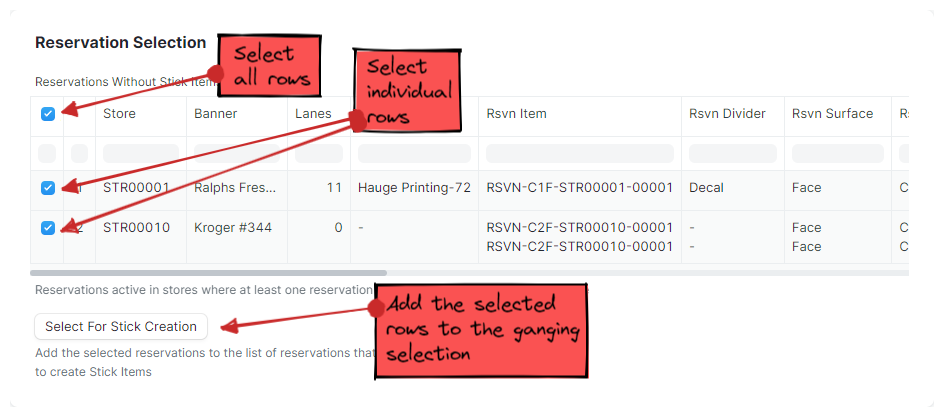
- Select all (or cherry-pick specific) reservations from the "Reservations
Without Stick Items" table and click "Select for Stick Creation".
- The selected rows will move to the next section.
Step Three: Ganging Section
TLDR; Create the necessary Documents and gang the selected reservations.
Tip
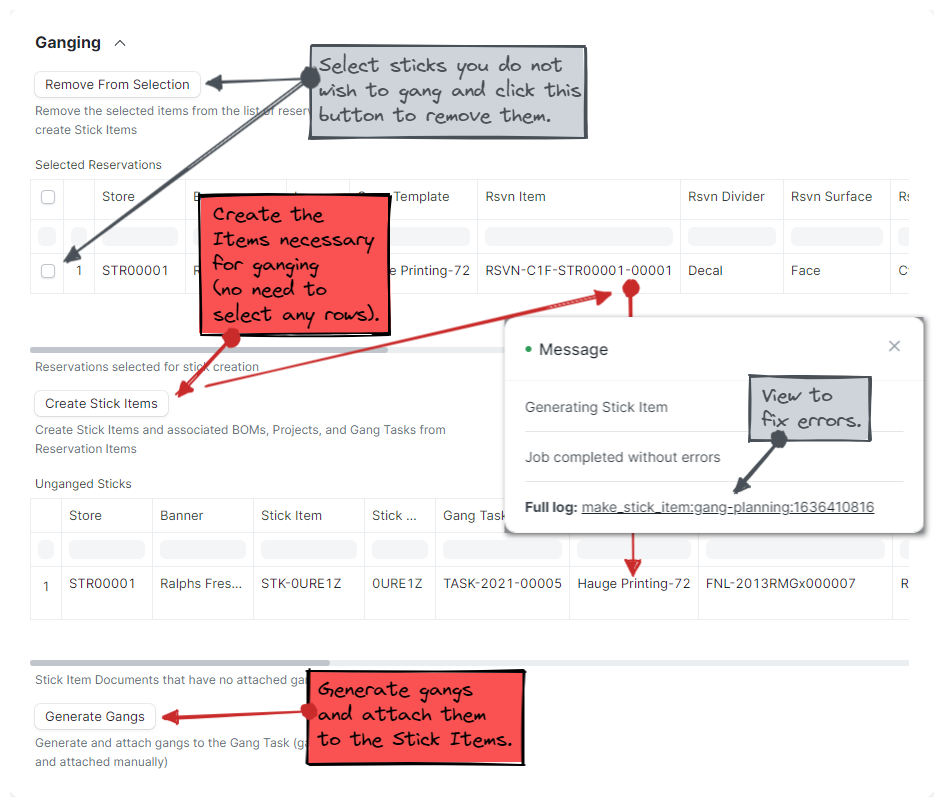
If there are any sticks in this section that you do not wish to gang, select them and click "Remove From Selection".
You can roll back the changes made in this section by opening the stick Item and clicking the "Delete Stick" button at the top of the page. If the stick Item has an attachment (e.g. the gang), it must be deleted first.
Documents Generated
- Print Order
- BOM
- a ganging Project
- a ganging Task
- Click "Create Stick Items" to generate the Documents needed for
ganging.
- The production cycle will reload, and all of the rows in the "Selected Reservations" table that met with success will be moved to the "Unganged Sticks" table below.
- This step will gereate a message that indicates whether the job experienced any issues.
- Clicking on the "Full log" link will take you to the Dividers Job Log
- Click "Generate Gangs"
- This step will generate a message containing a link to the Dividers Job Log. Since this step may take some time to complete you can monitor the job log page to determine when the job is complete.
- When the job is complete, refreshing the cycle (by clicking the "Fetch Reservations" button) will show successfully ganged rows in the "Material Requests" section.
Step Four: Material Requests Section
TLDR; Generate Material Request Documents that will be used to create the Purchase Order Document.
- Select the rows you want to to place on a Material Request Document.
- Review the "Sticks Per Lane" field and update as needed.
- Click the "Create Material Request" button.

Step Five: Purchase Orders Section
TLDR; Generate the Purchase Order and gather the files and documents to send to the printer.
Tip
Create as many Material Requests as you like, but hold off on creating a Purchase Order until you are ready to send in the order to the printer. This will reduce the amount of work required.
- Click the "Create Purchase Order" button.
- Fill out the Purchase Order as described below.
- Save and submit the Purchase Order.
- Click the "Download Gangs" button at the top of the Purchase Order.
- This will download a zip file containing the gangs of all of the sticks that appear on the Purchase Order.
- Click the print button.
- Change the print template to "Dividers Inserts" and print the document.
(Gang Planning Page)

(Purchase Order Document)

Purchase Order Form
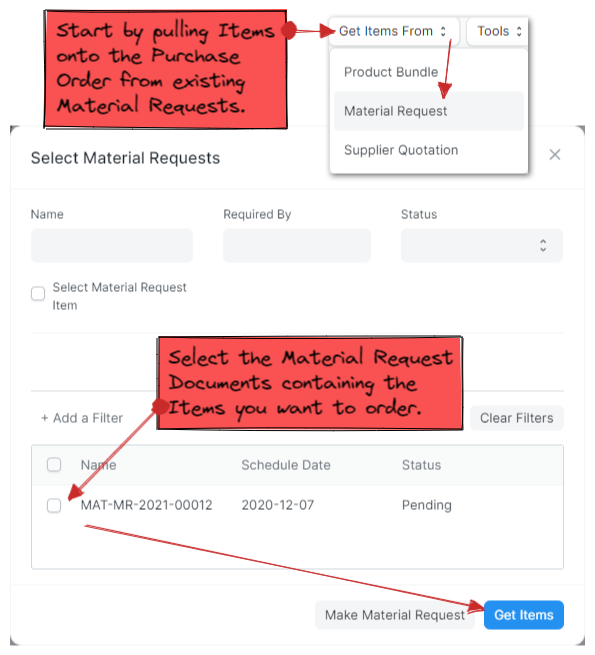
Begin by pulling the items (i.e. sticks) from the Material Request Documents that you want to Order.
- Click the "Get Items From" Button.
- Select "Material Request".
- Select the Material Request Document(s) you want to order on the Purchase Order.
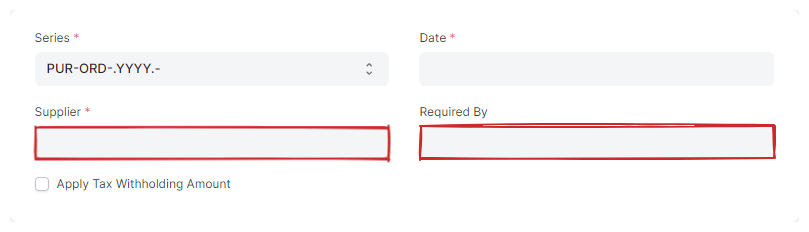
Top Section
- Supplier
- Select the printer that will manufacture the sticks.
Note
This will fill in the "Required By" date for each line in the Items section.
- Required By
- Enter the date you expect the order to be completed by.
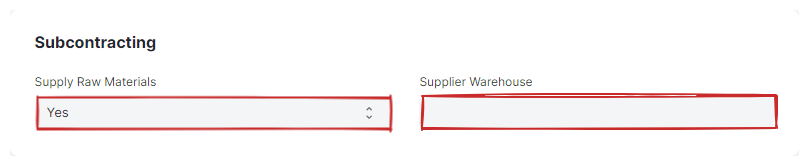
SubContracting Section
- Suply Raw materials
- Select Yes
- Supplier Warehouse
- Select the warehouse we store the raw sticks in.
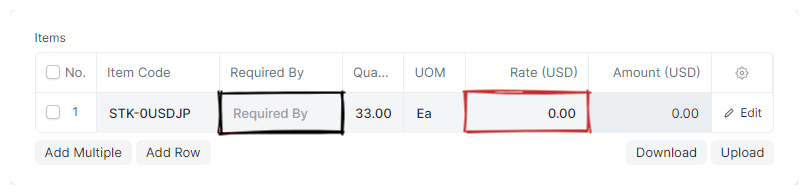
Items Section
Tip
It is possible to track what is installed in stores by setting up a corresponding warehouse for each store. Individual warehouses can then be selected on each item of the Purchase order (this could all be automated). When items are recieved, they would stock the warehouse, allowing us to track what is physically installed at each location.
- Items
-
Contains the items to purchase from our supplier.
- Required By
- Enter or adjust the date you expect the items from the supplier.
- Rates (USD)
- Enter pre-tax cost of each item.
Unnamed Taxes Section
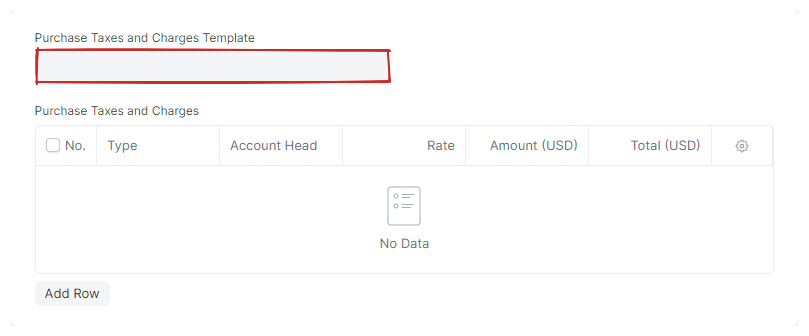
- Purchase Taxes and Charges Template
- Select the appropriate tax template.