How To Refund or Cancel a Customer Payment
Refunding a Payment is a four step process. The payment should be new or unreconciled; if this is not possible, an additional Credit Note or Journal Entry will need to issued against the Sales Invoice instead. This is typically handled automatically.
Here is an overview of the process:
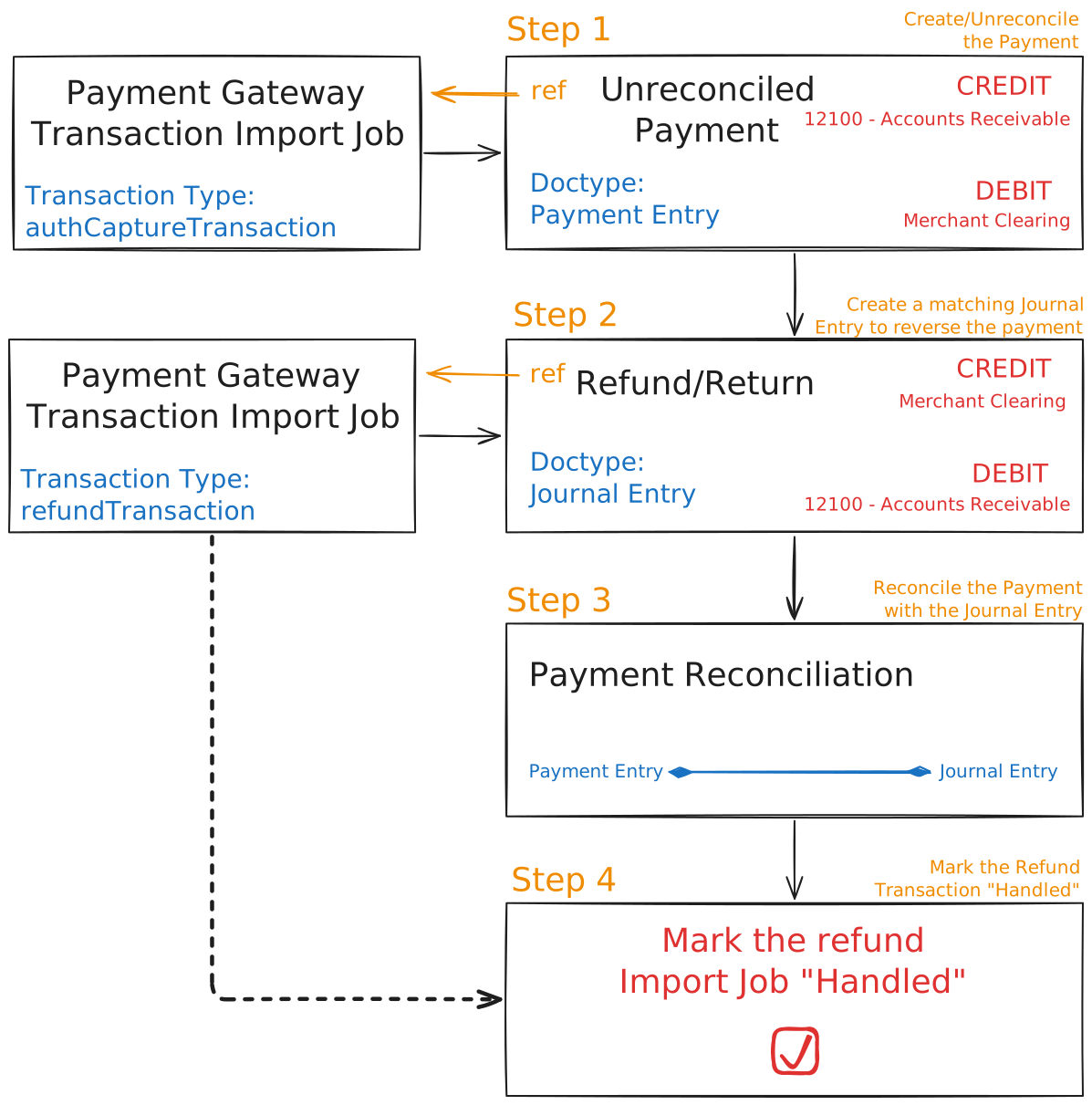
Step 1: Create/Unreconcile the Payment
If the payment has not yet been recorded, open the Payment Gateway Transaction Import Job that represents the payment. Then select "Create Manual Payment Entry" from the "Manage" menu. In the Payment Entry form, make sure the correct Party Type and Party is selected, but leave the Payment References table empty. Make note of the accounts used in the Account Paid From and Account Paid To fields, then save and submit the payment.
Note
This step automatically references the Payment Gateway Transaction Import Job in the Payment Entry. When submitted, the job is also automatically marked "Imported". However, if the Payment Entry is created manually without referencing the Payment Gateway Transaction Import Job, the job will need to be marked "Handled" manually.
Select "UnReconcile" from the "Actions" menu button while viewing either a Sales Invoice or Payment Entry. Then select the row(s) to unreconcile, and click the "UnReconcile" button.
Warning
Until you click "UnReconcile", the select rows will NOT be unreconciled.
Step 2: Create a Matching Journal Entry To Reverse the Payment
Create a Journal Entry associated with the customer that reverses the credit and debits to the accounts used in the Payment Entry. In the Reference section, fill in the Payment Gateway Transaction Import Job field with the Payment Gateway Transaction Import Job associated with the return. Save and Submit.
Step 3: Reconcile the Payment with the Journal Entry
Use the Payment Reconciliation page to reconcile the Payment Entry created in step one against the Journal Entry created in step two.
Step 4: Mark the Refund Transaction "Handled"
Finally, mark the Payment Gateway Transaction Import Job representing the refund as "Handled" by selecting "Mark Handled" from the "Manage" menu.